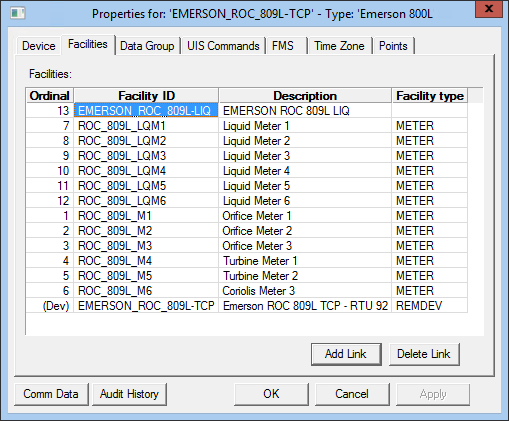
Use the Facilities page to view, select, and modify facility settings for a remote device.
Click the following image to see an example Facilities page:
For more information about facilities, see Facilities.
The following table lists and describes Facilities page properties.
| Property | Description |
|---|---|
|
Ordinal |
This field displays ordinalized facilities associated with the original remote device facility. Each represents a logical grouping of data associated with and/or derived from the remote device. The remote device facility is created on an ad hoc basis when you proceed from the Device page to the Facilities page upon remote device setup. However, additional ordinalized facilities must be created in or chosen from the Facility Service (FAC) using the Add Link button on the Facilities page in the device editor. You can add up to 9999 ordinalized facilities. Although CygNet automatically provides ordinal numbers in the sequence that you add new facilities to your remote device, you can double-click on the numeral and change it to suit your requirements. Double-click on the (Dev) value in this field to open the properties for that remote device facility. For more information, see Data Group Ordinals and Facility Ordinals. See Device Facilities and Linked Facilities for information about linked facilities. |
|
Facility ID |
The name given to the facility upon remote device or facility creation. Double-click on the value in this field to open the properties for that facility. For more information, see Data Group Ordinals and Facility Ordinals. |
|
Description |
The description given to the facility upon remote device or facility creation. Double-click on the value in this field to open the properties for its facility. |
|
Facility Type |
One of numerous facility type options, including SITE, REMDEV, GENFAC, custom additions, and others. Double-click on the value in this field to open the properties for its facility. |
|
Add Link |
Click Add Link to link a facility to the primary device facility. Once within the Select a Facility dialog box, you can select and link to an existing facility, click Add Facility to add a new facility to the FAC, or click Edit Facility to edit an existing facility. |
|
Delete Link |
Highlight a linked facility and click Delete Link to remove the link. Note: Only the link is removed; the facility itself remains in the FAC unless you manually delete it there. |
|
Comm Data |
Enables you to open a modeless Communications Data Viewer dialog box. |
|
Audit History |
Enables you to view the audit trail for the device. |

|
|
|

